
Find your boxes faster from your home screen.
MyKeeper Demo
How MyKeeper works
Simple, local-first storage tracking — no account needed.
Create a container
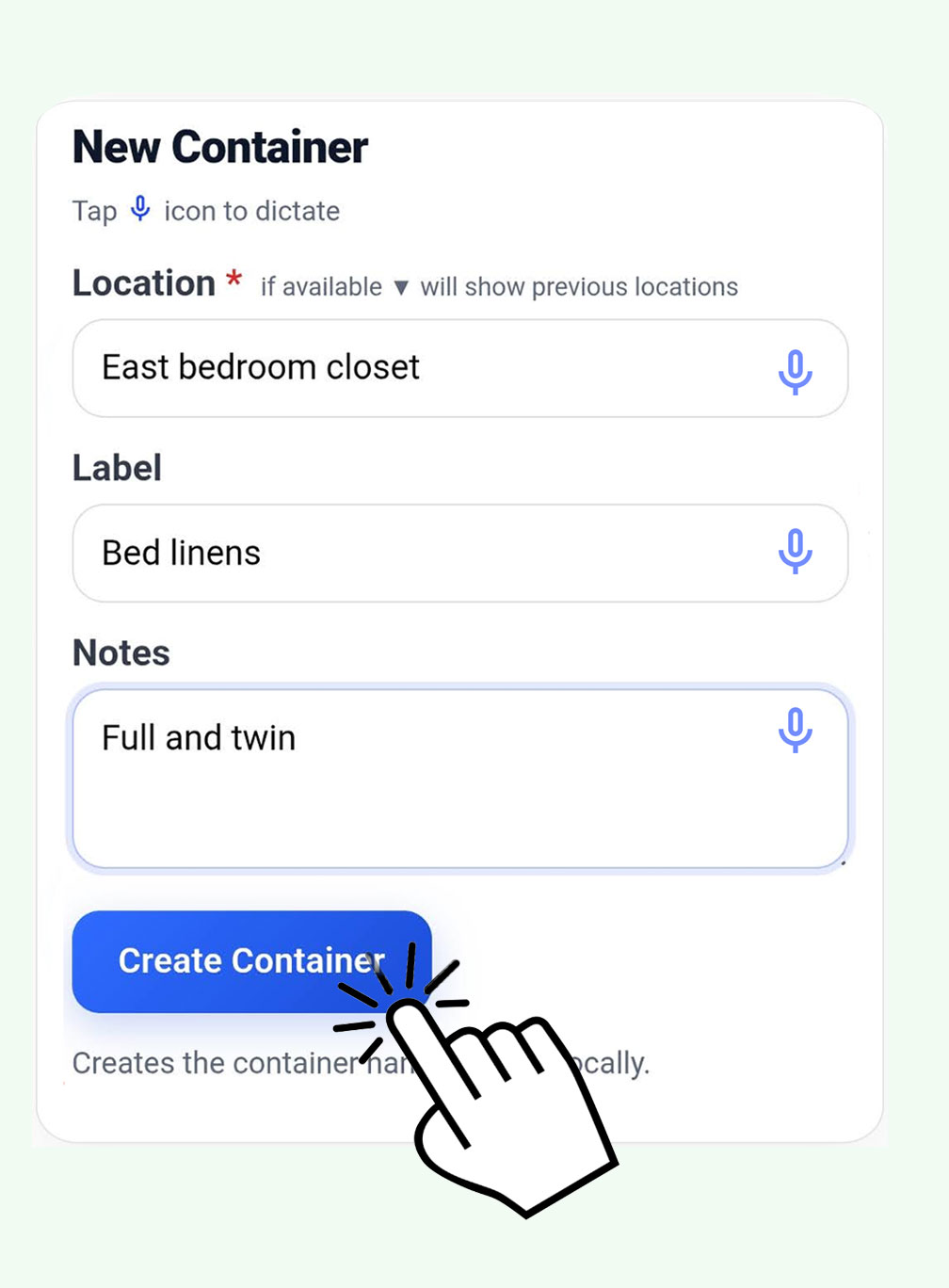
Start by creating a container — a box, tote, drawer, shelf, folder, or anything you put your stuff in.
- Add a location: Basement, Garage, or Office
- Add a label: Christmas Decorations or Craft Supplies
- Optionally add notes about the container
- Box name is auto-generated: B-001
Add items
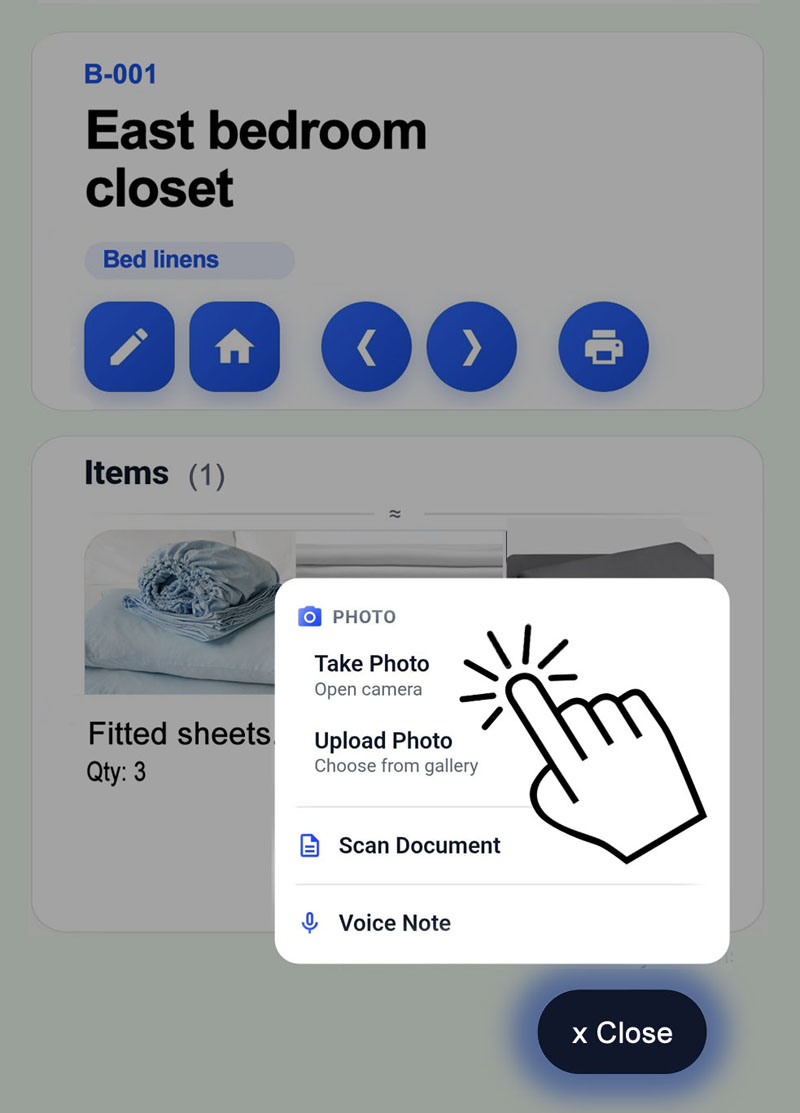
Add items to your container with as much or as little detail as you need.
- Item label or title
- Notes
- Up to 6 photos per item
- Scanned pages with searchable OCR text
- Voice notes
Label your container
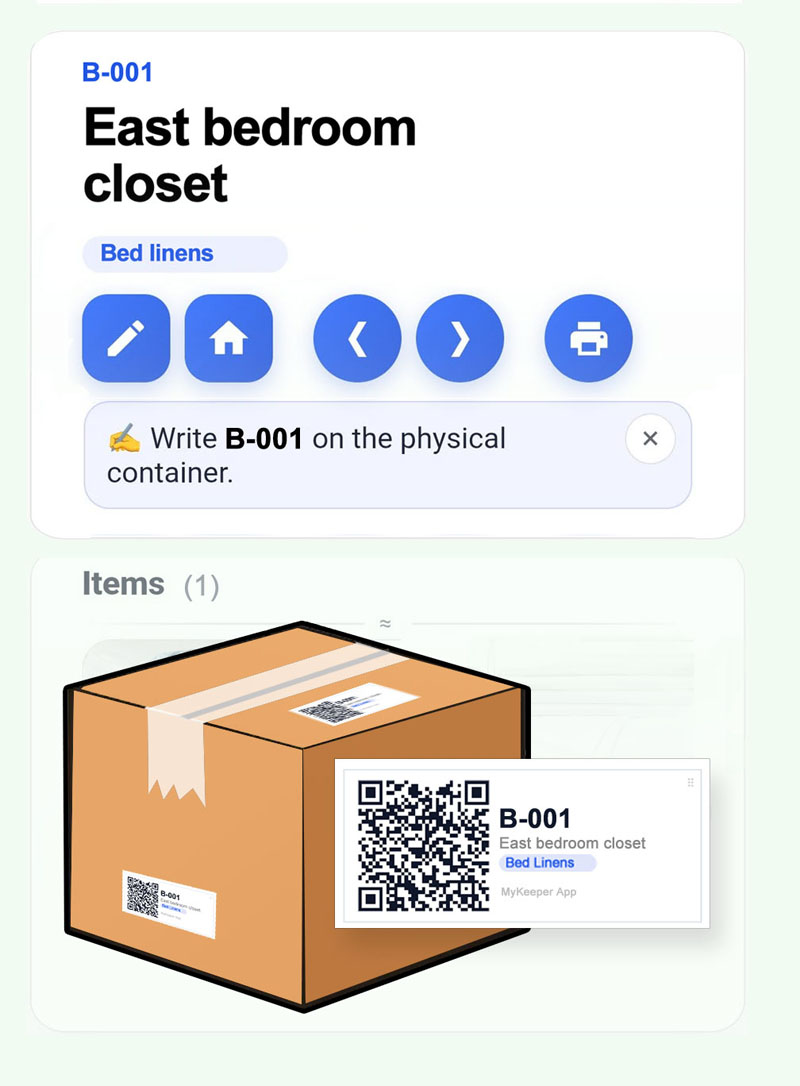
Print a QR label and stick it on your box. One scan takes you straight to the container and everything inside it.
- Choose from two label sizes
- Print multiple labels at once
- Works with standard Avery label sheets
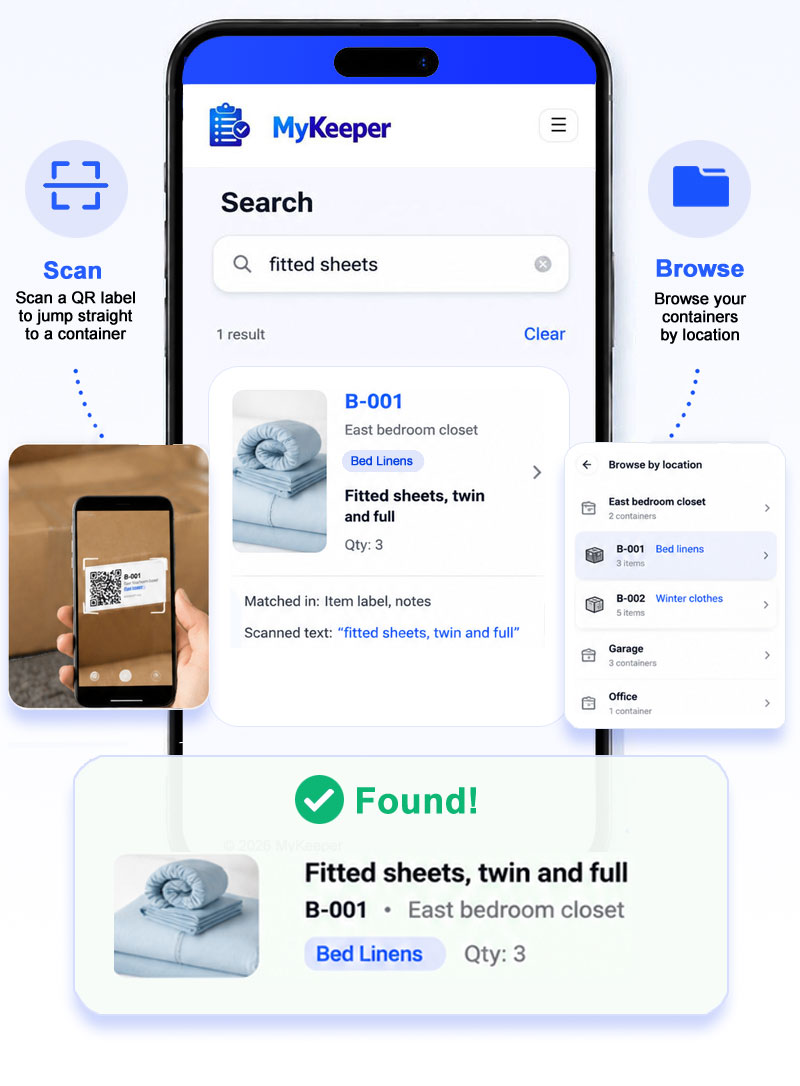
Find it later
Three ways to get back to what you stored — whichever is fastest in the moment.
- Search by container name, item label, notes, or scanned text
- Scan a QR label to jump straight to a container
- Browse your containers by location
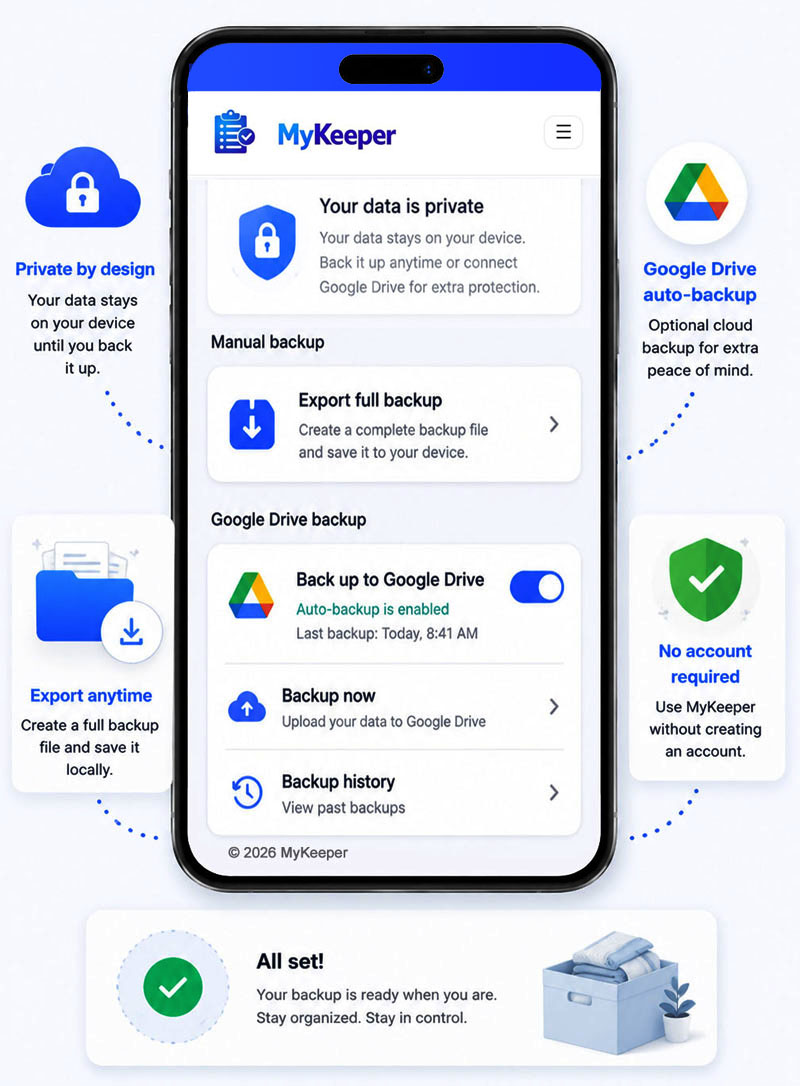
Back up your data
Your data lives on your device — private by default. Back up whenever you like, or connect Google Drive for automatic backups.
- Export a full backup file anytime
- Optional Google Drive auto-backup
- Restore from backup on a new device
- No account required, no data mining
Create a container
Start by creating a container — a box, tote, drawer, shelf, or anything you put your stuff in.
- Add a location: Basement, Garage
- Add a label: Christmas Decorations
- Box name is auto-generated: B-001
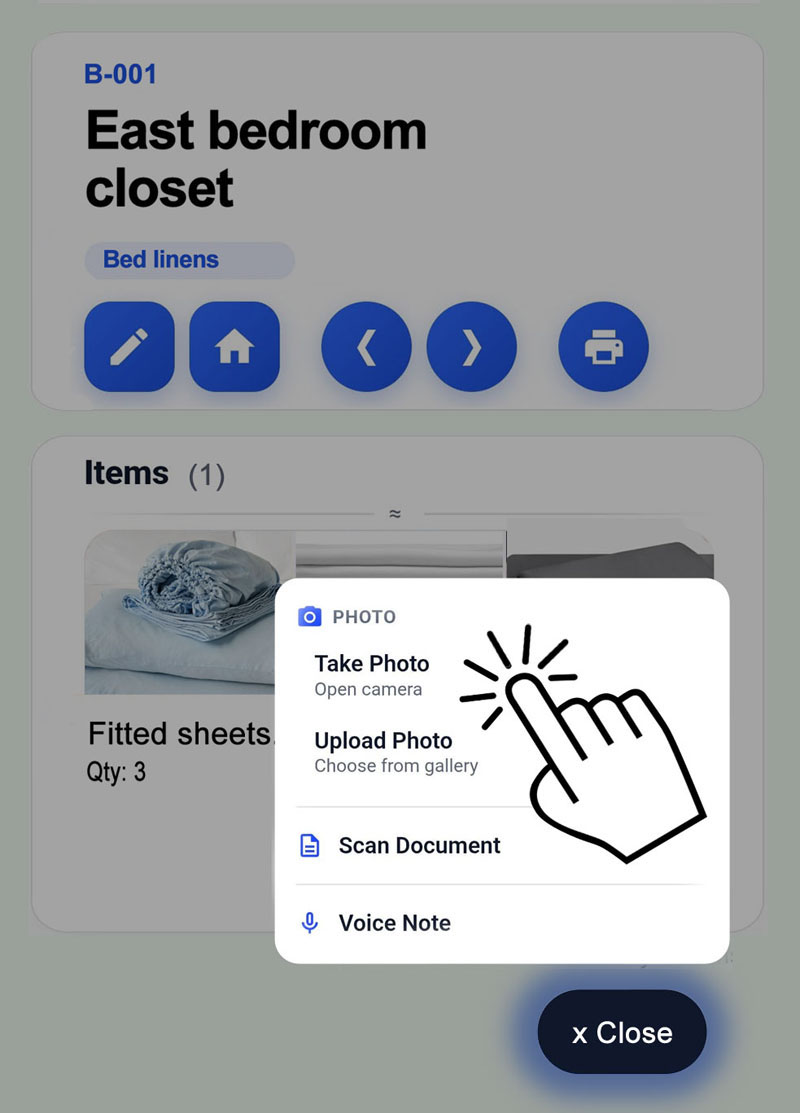
Add items
Add items with as much or as little detail as you need.
- Item label or title
- Notes
- Up to 6 photos per item
- Scanned pages with searchable OCR text
- Voice notes
Label your container
Print a QR label and stick it on your box. One scan takes you right to it.
- Two label sizes
- Works with Avery label sheets
Find it later
Three ways to get back to what you stored.
- Search by name, notes, or scanned text
- Scan a QR label
- Browse by location
Back up your data
Your data stays on your device. Back up anytime or connect Google Drive.
- Export a full backup anytime
- Optional Google Drive auto-backup
- No account required
Ready to try it?
Create your first container, add a few items, and the app starts becoming useful right away.